|
To Take E-CAP, you'll need:
 Computer with high-speed internet connection. A hard-wired
connection is best.
Computer with high-speed internet connection. A hard-wired
connection is best.
|
|
Web browser (Internet Explorer recommended),
with
Adobe Flash Player.
To check if flash is installed on your computer,
click here.
|
 |
|
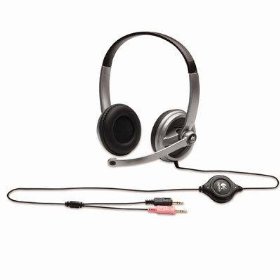
Microphone. Use an external microphone headset like that
pictured to the right. The internal microphones on most PCs and
Macs pick up too much background noise, and cell phone/iPhone
microphone recordings are very poor. Avoid USB style connectors and wireless
microphones. Microphone headsets are obtainable at many office
supply stores and on-line. You can test your microphone with the sample question below. |
 |
| |
|
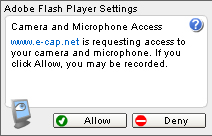
Allow Adobe Flash Player to access your microphone. When you
visit the E-CAP sample question page, or start your assessment,
you will see the Settings window at right. Please click
 .
It is safe for the Adobe Flash to access your computer's
microphone. If you click Deny, you will be unable to continue.
If you do not see the permissions dialog at right, be
sure that the flash player settings on your computer are set to
"always ask",
click here. .
It is safe for the Adobe Flash to access your computer's
microphone. If you click Deny, you will be unable to continue.
If you do not see the permissions dialog at right, be
sure that the flash player settings on your computer are set to
"always ask",
click here. |
 |
| |
|
|
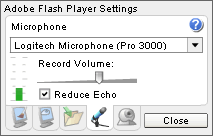
As the sample question begins, you will see additional
instructions about checking your microphone. You will be able to
adjust your microphone sensitivity by adjusting the slider in
the settings box like that at the right. When you speak, the green bar
will rise. Say something like "Hello, today is Tuesday." The bar
should reach the yellow level. If the bar reaches the red region
while you speak, reduce the Record Volume with the slider. Be
sure to click "Reduce Echo." When you are finished, click
"Close". |
 |
| |
|
|
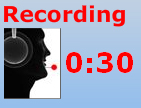
Please follow the additional guidance in the sample question
about preparation time and the recording clock. |
 |
Try the sample question now
For help, see our troubleshooting guide
or consult your computer support staff.
|